JSON In Gamemaker
Say you're making an RPG. Your game is going to feature a plethora of different weapons, items and potions. Some weapons have special effects (fire, ice, poison), and they deal different amounts of damage. The potions can cause all kinds of arcane effects to your character, and the items could be anything from apples to ancient scrolls to slugs. How do you keep track of all this complex data? There are many solutions, ranging from arrays to grids, all the way to strings. The problem with most of the solutions is they end up tough to expand or modify when needed. With JSON, adding a custom weapon that differs from all the others in some way, or changing your mind about how a system should work is super easy, and doesn't require completely revising your code or utilizing ugly hacks.
# JSON Object
JSON (JavaScript Object Notation) is really just a data format. It's mainly built for serializing (saving, encoding, turning data into text) JavaScript objects, which is a datatype that lets you define key - value pairs. In practice, this simply means an array where you use strings instead of numbers for the array indices. Because of JSON being based on JavaScript, I will show some examples from JavaScript, though fear not if it's a foreign language to you! I'll keep the JS examples simple and similar to GML. Here's an example of an array and an object in JavaScript.
// Array defined exactly like in Gamemaker
var array = ["value1", 78, "cat"];

var object = { "key1": "value1", "number": 78, "meow": "cat" };

// `console.log()` prints a value, similar to `show_debug_message()` in GML.
// Hit that Play button in the top right to execute JavaScript code

// Outputs `value1`
console.log(array[0]);
console.log(object["key1"]);

// Outputs `78`
console.log(array[1]);
console.log(object["number"]);

// Outputs `cat`
console.log(array[2]);
console.log(object["meow"]);
In the example above, the object's key for the value "cat" is "meow", while the array index for the value "cat" is 2. Arrays and objects differ in that arrays store data sequentially, while objects assign values to keys, similarly to using variables. Javascript objects can also be defined in a different way which means exactly the same, but remember the object definition above.
var object = new Object();

object["key1"]   = "value1";
object["number"] = 78;
object["meow"]   = "cat";

console.log(object["key1"]);
console.log(object["number"]);
console.log(object["meow"]);
JavaScript objects are also called by two other names; "dictionary" and "map". Gamemaker has a similar structure which it calls ds_map. If you're not familiar with data structures in Gamemaker, don't worry; they're nowhere near as scary as they might first seem.
# Using Maps In Gamemaker
Maps are created with the ds_map_create() function (this is pretty much equivalent to new Object() in JavaScript). Once created, you can access keys of the map with a notation similar to arrays and JavaScript objects, except you need to use the ? accessor.
var map = ds_map_create();

map[? "key1"]   = "value1";
map[? "number"] = 78;
map[? "meow"]   = "cat";

show_debug_message(map[? "key1"  ]); // Outputs `value1`
show_debug_message(map[? "number"]); // Outputs `78`
show_debug_message(map[? "meow"  ]); // Outputs `cat`
If it wasn't for that ? after every opening bracket ([), this would be near identical to JavaScript. When dealing with data structures in Gamemaker, you can either use functions to get and set values, or you can use accessors. The accessor tells Gamemaker which type of data structure you're using. ? means map, # means grid, | means list. Technically, there also exists an accessor for arrays, but that's for advanced use.
There really isn't much of a difference between using map[? "key"] and a variable mapKey. You can set both to any kind of value (number, string, undefined), and you can read the value of both. Maps are useful because they can be much more dynamic. It's very easy to load in a map, giving you any number of key-value pairs, as opposed to reading some file line by line and manually storing each value in a variable. Additionally, you can use variables as keys, giving you more control over what data you're reading/writing. Lastly, maps (and other data structures) can be "shared" very easily. Once you've created a data structure, you can store that in multiple variables, arrays, even different objects, and they'll all refer to the same map.
map1 = ds_map_create();
map2 = map1; // both refer to the same map

map2[? "key1"]   = "value1";
map2[? "number"] = 78;
map1[? "meow"]   = "cat";
map1[? "health"] = 6;

show_debug_message(map2[? "key1"  ]); // Outputs `value1`
show_debug_message(map1[? "number"]); // Outputs `78`
show_debug_message(map1[? "meow"  ]); // Outputs `cat`
show_debug_message(map2[? "health"]); // Outputs `6`
show_debug_message(map1[? "health"]); // Outputs `6`
The reason that both of these variables refer to the same map, instead of copying the map when doing map2 = map1, is that data structures in Gamemaker are technically just numbers. If you were to do show_debug_message(ds_map_create()), it would log some number. Maybe 0, maybe 1, maybe 2, maybe 64. It depends entirely on how many maps you've created in your game. Anyway, since data structures are numbers, there isn't really any way for Gamemaker to tell what type of data structure a variable has, or even if it is a data structure at all. That's why we need accessors, and different functions for different data structures.
# Primitive types
Every language has something it calls primitive types. Think of these as some of the building blocks of the language; what every value in you program, game or website is based on. In Javascript, those are objects, numbers, strings and undefined. In Gamemaker, they are arrays, numbers, strings and undefined. JavaScript does have arrays, but they're technically objects (they just have numbers as keys instead of strings). And Gamemaker has maps instead of JavaScript objects, but they're really just numbers (think of them as IDs for the actual data structures stored somewhere in memory). While Gamemaker does have arrays, it also has a very similar data structure called ds_list. Lists are pretty much the same as arrays, except they use the | accessor, and need to be created with ds_list_create(). When dealing with JSON in Gamemaker, lists are preferred over arrays.
JSON's primitive types are objects, arrays, numbers, strings and boolean. The last type, boolean is just either true or false. In Gamemaker, this will become 1 and 0, since Gamemaker booleans are just numbers. Objects in JSON are written like the first example of JS objects in this tutorial. Arrays, numbers and strings are written like you're used to. Since JSON is just for storing data, it doesn't support any logic or anything more complex than primitive types. Every JSON file is an object with data inside.
{
    "title": "This is a JSON file",
    "author": "TonyStr",
    "date_time_of_release": 1564744439000,
    "list": [2, 4, 5, 6, 8, "string", 5, 2, -8],
    "object": {
        "title": "this is an object inside an object!",
        "another_object": {
            "foods": ["apple", "banana", "MeatOnTheBone"],
            "is_inside_object": true,
            "is_a_list": false
        }
    }
}
Above is an example of a JSON file. You can nest as many lists and objects inside each other as you'd like.
# JSON in a file
Create a file (New Text Document) on your computer and call it rpg_data.json. You might have to enable "Show File Name Extensions" in your file explorer to be able to change the file type.

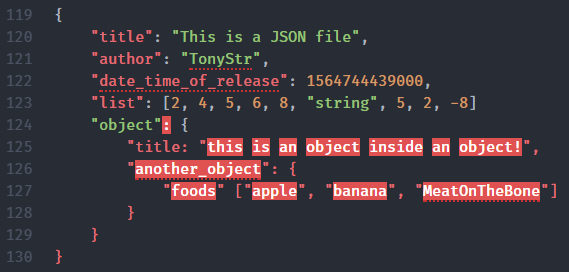
Right-click it, and open with Atom, VSCode, notepad or whatever text-editing software you have available. Note: although you technically can write JSON in any text editor you like, a code editor that provides syntax highlighting will be a tremendous help when writing JSON. If you miss a quote, comma or colon, your JSON will be invalid, leading to issues when you want to use this data. Below is an example of invalid JSON with syntax highlighting:
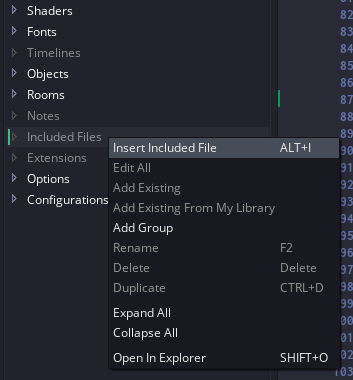
Once you've created the JSON file, (even if it's still empty), fire up Gamemaker and add the file to "Included Files"
You can pretty much handle whitespace (spaces, newlines, tabs) however you want, but missing commas, quotes, braces and brackets will break your JSON. If you're not sure what's wrong with your JSON, you can use an online JSON validator.
I will use the following JSON in the rpg_data.json file for the rest of the examples in this article.
{
    "weapons": [{
        "name": "longsword",
        "sprite": "spr_longsword",
        "damage": 3,
        "weight": 13
    },{
        "name": "rapier",
        "sprite": "spr_rapier",
        "damage": 1,
        "weight": 4.3
    },{
        "name": "axe",
        "sprite": "spr_axe",
        "damage": 3,
        "weight": 9.7
    },{
        "name": "steel_bow",
        "sprite": "spr_bow",
        "damage": 2,
        "weight": 13,
        "arrow_count": 8,
        "elasticity": 12
    },{
        "name": "burning_longsword",
        "sprite": "spr_burning_longsword",
        "damage": 2.4,
        "weight": 12,
        "effects": ["fire"]
    },{
        "name": "enchanted_bow",
        "sprite": "spr_enchanted_bow",
        "damage": 2.4,
        "weight": 12,
        "arrow_count": 8,
        "elasticity": 12,
        "effects": ["ice", "poison", "lightning"]
    }],

    "items": [{
        "name": "apple",
        "effects": ["heal"],
        "weight": 0.5
    },{
        "name": "scroll",
        "type": "ancient",
        "effects": ["lightning"],
        "mana_cost": 17,
        "weight": 0.1
    },{
        "name": "slug",
        "has_shell": true,
        "weight": 0.2
    }],

    "potions": [{
        "name": "Vial of Thunder",
        "effects": ["lightning", "sight"],
        "weight": 1
    },{
        "name": "Potion of Farsight",
        "effects": ["sight"],
        "weight": 1
    },{
        "name": "Philter of Pheromones",
        "weight": 1
    },{
        "name": "Potion of Speed",
        "effects": ["speed"],
        "weight": 1
    },{
        "name": "Draught of Bribery",
        "effects": ["luck"],
        "weight": 1
    },{
        "name": "Flask of Desires",
        "effects": ["luck", "accuracy", "strength"],
        "weight": 1
    },{
        "name": "Elixir of Empowerment",
        "effects": ["strength"],
        "weight": 1
    },{
        "name": "Draught of Accuracy",
        "effects": ["accuracy"],
        "weight": 1
    },{
        "name": "Draught of the Unknown",
        "effects": ["random"],
        "weight": 1
    },{
        "name": "Potion of Defense",
        "effects": ["defense"],
        "weight": 1
    }]
}
This JSON consists of three lists ("weapons", "items", "potions"). Every weapon, item and potion has a "name", many of them have "effects", and some have more properties. All of the weapons have damage and weight. This is kinda messy, and it can be hard to keep track of which objects can have which properties, so it might be helpful to write another JSON document that describes the structure of your JSON (JSON schema). This isn't necessary, and if it causes more confusion than understanding, ignore the rest of this section. In the case of the example above, the JSON schema I've made is:
{
    "type": "object",
    "required": true,
    "properties": [{
        "key": "weapons",
        "type": "list",
        "required": true,
        "children": [{
            "type": "object",
            "required": false,
            "properties": [{
                "key": "name",
                "type": "string",
                "required": true
            },{
                "key": "sprite",
                "type": "string",
                "required": true
            },{
                "key": "damage",
                "type": "number",
                "required": true
            },{
                "key": "weight",
                "type": "number",
                "required": true
            },{
                "key": "effects",
                "type": "list",
                "required": false,
                "children": [{
                    "type": "string",
                    "required": false
                }]
            },{
                "key": "arrow_count",
                "type": "number",
                "required": false
            },{
                "key": "elasticity",
                "type": "number",
                "required": false
            }]
        }]
    },{
        "key": "items",
        "type": "list",
        "required": true,
        "children": [{
            "type": "object",
            "required": false,
            "properties": [{
                "key": "name",
                "type": "string",
                "required": true
            },{
                "key": "weight",
                "type": "number",
                "required": true
            },{
                "key": "effects",
                "type": "list",
                "required": false,
                "children": [{
                    "type": "string",
                    "required": false
                }]
            },{
                "key": "type",
                "type": "string",
                "required": false
            },{
                "key": "mana_cost",
                "type": "number",
                "required": false
            },{
                "key": "has_shell",
                "type": "boolean",
                "required": false
            }]
        }]
    },{
        "key": "potions",
        "type": "object",
        "required": true,
        "children": [{
            "type": "object",
            "required": false,
            "properties": [{
                "key": "name",
                "type": "string",
                "required": true
            },{
                "key": "weight",
                "type": "number",
                "required": true
            },{
                "key": "effects",
                "type": "list",
                "required": false,
                "children": [{
                    "type": "string",
                    "required": false
                }]
            }]
        }]
    }]
}
This has no practical use beyond mapping out what kind of data your JSON keeps track of, but if you're working with others, this can be very helpful for your collaborators to understand how to deal with the JSON data.
# Loading JSON From File
Once you've got your JSON file, you'll want to load it in to Gamemaker. One way to do this is to use the file_text_open_read() functions, to read it as a text file. However, we want the whole file simply loaded in as one big string, so it's actually easier to just use buffer_read() functions. Below is a script called json_load(), which takes a filename (or file path) as argument, and returns a ds_map:
/// @func json_load(fname)
/// @desc Loads external JSON file into data structure
/// @arg fname

var _buff = buffer_load(argument0);
var _out = buffer_read(_buff, buffer_string);
buffer_delete(_buff);
return json_decode(_out);
Four lines of code is all it takes! The function json_decode() reads a string, and parses it as JSON, then spits out a ds_map, containing all the data in your JSON file.
# Using JSON data
You might want to load your JSON data into a global variable, or somewhere that makes it easily accessible from anywhere in your game. Let's make global variables for each of the lists in the JSON, in a new script called INIT().
/// @func INIT()

gml_pragma("global", "INIT()");

global.rpg_data = json_load("rpg_data.json");

global.weapons  = global.rpg_data[? "weapons"];
global.items    = global.rpg_data[? "items"];
global.potions  = global.rpg_data[? "potions"];
The line, gml_pragma("global", "INIT()");, makes the script automatically run at the start of the game, without you ever having to call INIT() anywhere in your code. You could just define globals in a game start event, or even just the create event of some object, but this way we don't need to worry about instance creation order. You can read more about gml_pragma() here.
Now, let's give a player object it's own sword. We could just do sword = global.weapons[| 0], however it's more readable if we select a sword by it's name, rather than it's index in the weapons array. Let's write a quick script to find a map inside a list, which has a key that matches a given value:
/// @func ds_list_find_map(list, key, value)
/// @desc Finds a map inside a list which has a `key` that matches `value`
/// @arg list
/// @arg key
/// @arg value

var _list = argument0;
var _key  = argument1;
var _val  = argument2;
var _ls   = ds_list_size(_list);

for (var i = 0; i < _ls; i++) {
    var _map = _list[| i];

    if (ds_exists(_map, ds_type_map) && _map[? _key] == _val) {
        return _map;
    }
}

return undefined;
Now we can get a sword in a much more reliable way.
sword = ds_list_find_map(global.weapons, "name", "longsword");
Then, when the player deals damage to an enemy, let's use the weapon's damage value.
_instance.hp -= sword[? "damage"];
Now, if you want to use the "sprite" in the JSON, you have to find the asset index of it. You can't just do draw_sprite(sword[? "sprite"], 0, x, y), since that will try to draw the string "spr_longsword". It's the same as writing draw_sprite("spr_longsword", 0, x, y), but you need draw_sprite(spr_longsword, 0, x, y). To achieve this, use the function asset_get_index().
draw_sprite(asset_get_index(sword[? "name"]), 0, x, y);
Now, with a quick snippet of code for switching weapons, let's see it in-game.
var _change = keyboard_check_pressed(vk_right) - keyboard_check_pressed(vk_left);
if (_change != 0) {
    var _weapons = ["longsword", "rapier", "axe"];
    var _len = array_length_1d(_weapons);
    var _index = (array_find_index(_weapons, sword[? "name"]) + _change + _len) % _len;
    sword = ds_list_find_map(global.weapons, "name", _weapons[_index]);
}
Note: if you have an object inside an object inside an object, and you want to get the innermost object in gml, sadly you can't currently do json[? "object1"][? "object2"][? "object3"]. Instead, create a local variable for var _object1 = json[? "object1"];, then do var _object2 = _object1[? "object2"]; and repeat. This feature is promised to come along with a bunch of gml features in the near future, though! (This also applies to ds_lists)
# Saving JSON
Let's give the player an inventory, and use weight to determine how much he can carry. I'm going to do this in the form of a ds_list of items/weapons/potions that the player has in possession. I'll start by filling it up with random items until the total weight surpasses the max weight.
inventory = ds_list_create();
inventory_weight_max = 32;

var _weight = 0;
while (_weight < inventory_weight_max) {
    var _list  = choose(global.weapons, global.items, global.potions);
    var _index = irandom(ds_list_size(_list) - 1);
    var _item  = _list[| _index];

    _weight += _item[? "weight"];
    if (_weight > inventory_weight_max) break;

    ds_list_add(inventory, _item);

    show_debug_message("Added item: " + _item[? "name"]);
}

show_debug_message("inventory size: " + string(ds_list_size(inventory)));
Debug message output: Added item: slug, Added item: slug, Added item: scroll, Added item: axe, Added item: burning_longsword, inventory size: 5
How you decide to represent the inventory (grid, list, icons, etc.) is up to you. To use the inventory, you'd simply use functions like ds_list_add(), ds_list_delete() and ds_list_find_map() to add items, delete items and find items. Assuming your player has collected these items in the game, and they now wish to stop playing for a while, you'll need to save their inventory. This is actually pretty easy. Simply add the list to a new ds_map, run json_encode(), and save the file.
var _save_map = ds_map_create();
_save_map[? "inventory"] = inventory;

var _file = file_text_open_write("save_data.json");
file_text_write_string(_file, json_encode(_save_map));
file_text_close(_file);
This will save the JSON to %appdata%/Local/<GAME_NAME>/save_data.json. (C:\Users\Tony\AppData\Local\arpash in my case). AppData is hidden by default, but you can find it by pressing win+r and typing %appdata%. If you're a particularly perceptive person, you might remember that all data structures are really just numbers, instead of their own datatype. So, how does json_encode() know which keys hold maps, lists or actual numbers? Well... currently it doesn't.
{ "inventory": 16.000000 }
This is what the save_data.json file looks like. We can solve this with the functions, ds_list_mark_as_map() and ds_map_add_list(). When using these functions, gamemaker remembers that these values are lists and maps, instead of just numbers.
// Create inventory
var _weight = 0;
var _inventory_index = 0;
while (_weight < inventory_weight_max) {
    var _list  = choose(global.weapons, global.items, global.potions);
    var _index = irandom(ds_list_size(_list) - 1);
    var _item  = _list[| _index];

    _weight += _item[? "weight"];
    if (_weight > inventory_weight_max) break;

/*add*/ inventory[| _inventory_index] = _item;
/*add*/ ds_list_mark_as_map(inventory, _inventory_index);
/*add*/ _inventory_index++;

    show_debug_message("Added item: " + _item[? "name"]);
}

show_debug_message("inventory size: " + string(ds_list_size(inventory)));

// Save inventory
var _save_map = ds_map_create();
/*add*/ds_map_add_list(_save_map, "inventory", inventory);

var _file = file_text_open_write("save_data.json");
file_text_write_string(_file, json_encode(_save_map));
file_text_close(_file);
Now if you try to save, you should see a much more desirable JSON structure.
{ "inventory": [ { "has_shell": 1.000000, "weight": 0.200000, "name": "slug" }, {
"has_shell": 1.000000, "weight": 0.200000, "name": "slug" }, { "mana_cost": 17.000000,
"effects": [ "lightning" ], "weight": 0.100000, "type": "ancient", "name": "scroll" },
{ "sprite": "spr_axe", "damage": 3.000000, "weight": 9.700000, "name": "axe" }, {
"effects": [ "fire" ], "sprite": "spr_burning_longsword", "damage": 2.400000,
"weight": 12.000000, "name": "burning_longsword" } ] }
Perfect! Except it's very hard to read. json_encode() prefers making more compact JSON to save on file size, since JSON doesn't necessarily need to be human readable. A JSON formatter could fix this. Let's make the game check if a save file already exists, then load that, but if it doesn't, fill up a new one.
inventory_weight_max = 32;

/*add*/if (file_exists("save_data.json")) {
/*add*/ // Load inventory
/*add*/ var _map = json_load("save_data.json");
/*add*/ inventory = _map[? "inventory"];
/*add*/
/*add*/ show_debug_message("loaded JSON: " + json_encode(_map));
/*add*/} else {
    // Create new inventory
    inventory = ds_list_create();

    var _weight = 0;
    var _inventory_index = 0;
    while (_weight < inventory_weight_max) {
        var _list  = choose(global.weapons, global.items, global.potions);
        var _index = irandom(ds_list_size(_list) - 1);
        var _item  = _list[| _index];

        _weight += _item[? "weight"];
        if (_weight > inventory_weight_max) break;

        inventory[| _inventory_index] = _item;
        ds_list_mark_as_map(inventory, _inventory_index);
        _inventory_index++;

        show_debug_message("Added item: " + _item[? "name"]);
    }

    show_debug_message("inventory size: " + string(ds_list_size(inventory)));
/*add*/}
# Cleaning Data Structures
Another side effect of data structures not having their own data types is that Gamemaker doesn't know when to destroy them (clean them from memory). If an instance creates a ds_map, then later dies (instance_destroy()), that ds_map still exists in memory, You've just deleted the only reference to it. This means that you have to destroy your data structures manually. Gamemaker has a CleanUp event, which runs when it's destroyed, the game ends, or other things happen that would cause it to cease to exist. Usually destroying your data structures there will suffice.
if (ds_exists(inventory, ds_type_list)) ds_list_destroy(inventory);
if (ds_exists(global.rpg_data, ds_type_map)) ds_map_destroy(global.rpg_data);
When using the functions, ds_list_mark_as_map(), ds_list_mark_as_list(), ds_map_add_list(), ds_map_add_map(), you don't need to destroy the lists and maps inside of other lists and maps. You only need to destroy the top-level data structure, and that'll destroy all child structures too.
And that concludes this tutorial on JSON! Go make some games with saving/loading and many weapons/items/potions. I'll be looking out for them on twitter.