Autotiling
Autotiling is a type of software that automatically figures out which tile graphics belong on each cell of a grid. This is super useful when creating level editors and games with modifiable terrain. For level editors, autotiling allows the user to select a tilemap, and then "draw" tiles on a level. The autotile software figures out which graphics belong on each cell you draw to, while you're drawing.
Some games that use autotiling are Terraria, Super Mario Maker 2, Spelunky, Stardew Valley, Factorio, Rimworld, Oxygen Not Included, and many more.
The two most common implementations of autotiling are 16-tile autotiling and 47-tile autotiling. 16-tile is easier to implement, and requires less work for the artist who draws the tileset, but 47-tile usually looks better. This article covers both implementations. Here's a demo of 16-tile autotiling, try switching tilesets from the control menu on the right, to see which it works best with.
# How tiling works
When deciding which tile to display, you need to look at the surrounding tiles. A tile doesn't need to know what type of tile is next to it, or how that tile is tiled, it only needs to know whether there is a tile next to it, or not. If, for example, there is a tile to the right of it, it'll need to display a tile graphic that makes it look like it's connected to the tile to the right of it. If there is no tile anywhere around it, it can just be a lone lump of grass, dirt, bricks, water or whatever your tileset represents. Contrariwise, if the tile is surrounded by tiles, it shouldn't display any edges, and instead just be a solid square of whatever material it is. Essentially, when a tile touches multiple tiles, it'll need to display a sprite that makes it look connected to every tile it touches. Try placing a tile in the demo above, then add tiles around it. You can enable a grid from the control-menu to the right of it, to see how each of the tile graphics fit together.
By the way, I write "tile graphics" instead of "sprite", because in the context of Gamemaker Studio 2 (the game engine this tutorial is focused on), one sprite can be house for many tiles.
if tile above
    if tile to right
        show 'tile_top_right'
    if tile to left
        show 'tile_top_left'
    else
        show 'tile_top'
if tile below
    if tile to right
        show 'tile_bottom_right'
    ...
Here's some pseudocode of how you might go about implementing autotiling. Lots of if-else checks will eventually do the trick, but it's big, messy, clunky, unreadable and hard to edit in the future. However, the main reason I'm showing you a different solution, is because autotiling (at least 16-tile) can be expressed in a beautiful way.
# Bitwise math
Bitwise math is the mathematical field which deals with base-2 operations. In other words, bitwise math is math on binary numbers. In normal "base-10" math, we use operators such as +, -, *, / and so on. These are called arithmetic operators. In binary algebra, we instead have bitwise operators (operators that work on bits). The most common operators are AND (&), OR (|), XOR (^) and NOT (~). You might be familiar with some logical operators that are almost the same; AND (&&), OR (||), XOR (^^) and NOT (!). What all of the logical operators have in common, is that they only know about 1 and 0 (true and false). They will treat all numbers around them as either 1 or 0 (-3 is read as 0, 89 is read as 1, 0.521 is read as 1, etc.), and they will produce either 1 or 0 results. Bitwise math does the same, but on every digit of the number as binary. Let's see an example:
0110 & 1100 = 0100
0110 | 1100 = 1110
0110 ^ 1100 = 1010
~0110 = 1001
You can really think of bitwise operators as logical operators running on every bit of a number. When you write 3 & 6, the compiler essentially runs && on every individual bit in the binary representation of those two numbers. In the case of 3 & 6, that'd be 0011 & 0110. A number is represented in binary by adding together different values for each bit. The first bit (starting from the right) is only worth 1, the 2nd bit is worth 2. The 3rd, 4, the 4th 8, the 5th 16, and it keeps doubling value for every bit higher you go to the left. If a bit is on (1), then you add the worth of that bit. If it's off (0), you skip it and go on to the next. The final number is the sum of all of the on bits' worth. The code block above can be written in base-10 as:
6 & 12 = 4
6 | 12 = 14
6 ^ 12 = 10
~6 = 9
There also exists
&=,|=,^=bitwise operators, that work similarly to+=,-=,*=,/=.
Differentiating binary from base-10 when writing numbers is really important. Above, I've used the same symbols, 1 and 0, in both base-10 and binary, even though those two symbols mean completely different things in the two counting systems. Even so, it's not that common to use different character sets for different counting systems. Counting systems usually use the symbols from 0 to 9, then if they're longer than base-10, they borrow symbols from the alphabet. Base-16 (Hex/Hexadecimal) for example, uses all of these symbols: 0, 1, 2, 3, 4, 5, 6, 7, 8, 9, a, b, c, d, e, f. This is pretty unfortunate, because if you just see the number 102 for example, you have no way of knowing if that's base-3, base-4, base-10, base-16, base-256 or even base-11037. That's why the base should always be specified, especially in programming. GML sadly doesn't allow writing numbers in base-2 (binary), but if it did, it would look like this: 0b1101. 0b denotes that the following is a number of base-2, the "b" is short for "binary". GML does however support 0x1a5f; hexadecimal. Until now, I've only showed binary numbers with four digits (bits), but that's only half of a byte. A byte can hold eight bits, which means the highest value a byte can hold is all eight bits added together, keeping in mind that each bit is worth twice as much as the previous. That's 1 + 2 + 4 + 8 + 16 + 32 + 64 + 128 = 255, or 2^8 - 1. If you count the 0, it can hold 256 different values, which is why 2^8 becomes 256 instead of 255.
Where this gets relevant for autotiling, is that you can essentially encode information in any number. We established above that autotiling is just a series of binary checks (true/false, 1/0), which means we don't need more than a single bit for each of the surrounding tiles. If you're only checking four sides, you only need four bits.
// A different random grid is used every time you run this code, hit
// the play button multiple times to see how the bitflag value changes
var _index = 0;

_index |= check_tile(x + 1, y) * 1; // right
_index |= check_tile(x, y - 1) * 2; // above
_index |= check_tile(x - 1, y) * 4; // left
_index |= check_tile(x, y + 1) * 8; // below

show_debug_message(debug_tile_bitflag(_index));
# Arranging tileset
Now that you can encode surrounding tile data in a number, let's look at numbering the tile graphics. You could just start counting 0, 1, 2, ... from the top-left, however if we want to use the bitflag number from before, we'll have to arrange it in a specific order. First, let's think of the autotiling as looking for empty tiles rather than solid tiles. Also, let's start with right, then bottom, then left, then top. So, 0b0001 that means tiles all around, except to the right. In that case, we wish to display a border to the right. Then, 0b0010 is tiles all around, expect below. 0b0100 is free only to the left, and finally 0b1000 is border up. However, there are lots more combinations between these numbers. 2, for example, is 0b0011. That means there is no tile to the right, nor below. In this case we want to display the rounded top-right tile. Later we get to 0b0111, which is free everywhere except above. In this case, we'll want to display the rounded vertical line bottom.
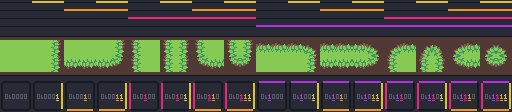
Let's arrange them from lowest bitflag value to highest. Try to look for some patterns in how they line up.
This tileset is arranged "right ➡, down ⬇, left ⬅, up ⬆", although it might be more natural to instead do "right ➡, up ⬆, left ⬅, down ⬇". It doesn't really matter too much which order you do these four directions in, as long as you pick one and stay consistent.
Notice how every other tile has a border to the right. And how every two tiles have a border below, followed by two without, then another two with. From tile 4 to 7 this also happens with border to the left, then it stops for four tiles, then the left border reappears for the last four tiles. The top border doesn't appear before tile 8, but it continues all the way to tile 15. At tile 15, these all line up, and we end up with a tile which has borders to the right, below, left and above. It ends up being a circle! A lone salad island of grass...
Look how neatly the bits line up!
# 16-tile in GMS2
Let's start with implementing 16-tile autotiling in Gamemaker Studio 2. We'll do 47-tile later, but that's harder and will become easier after having implemented 16-tile. Firstly, download this tilestrip or make your own:

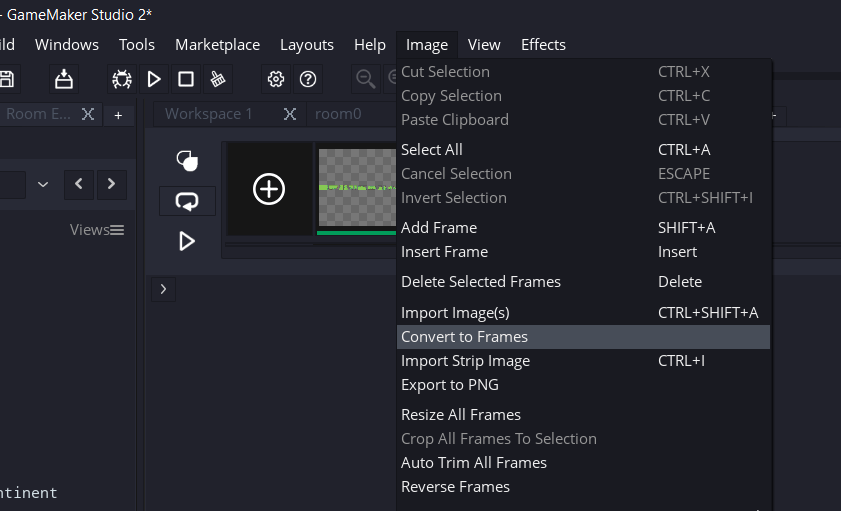
Create a new GMS2 project, drag the image in, and save the sprite as spr_tileset_grass. Then, click Edit Image, and look for Image > Convert To Frames from the toolbar at the top of the IDE:
Since this is a 16-tile tileset, the Number of Frames should be 16, and so should Frames per Row be, since they're all lined up in a single row. In this tileset, each tile is 32x32 pixels large, so both Frame Width and Frame Height should be 32. There is no separation or offset, so the rest of the values can be left at 0.
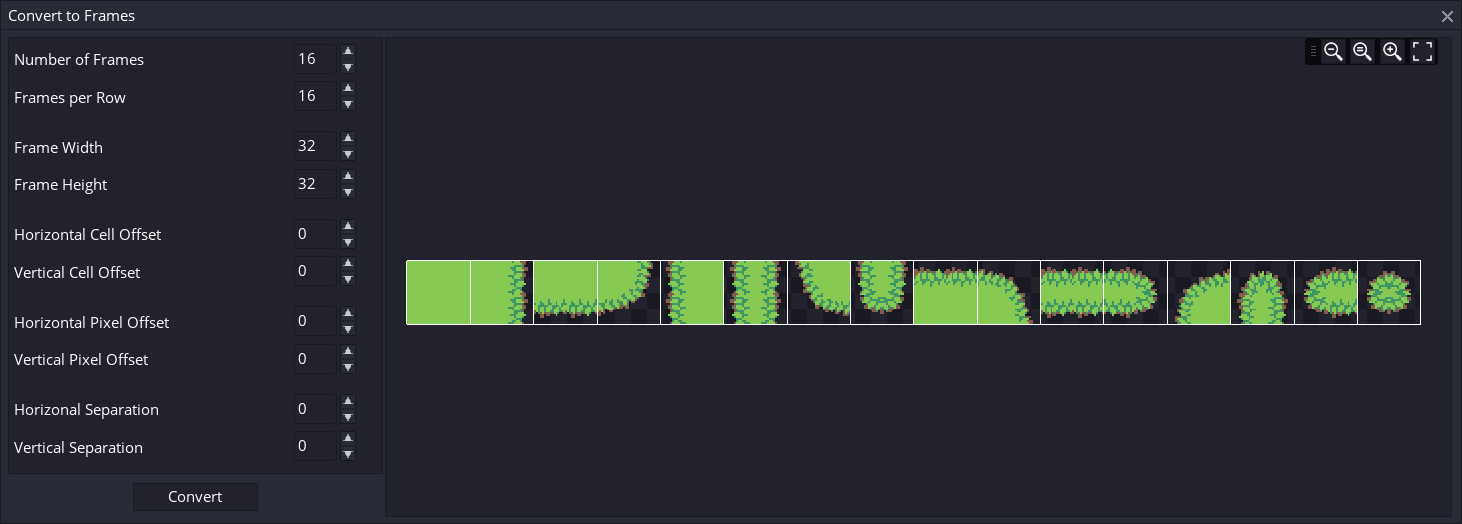
Once you're done, hit Convert. The sprite will be transformed into a 32x32 pixel sprite with 16 frames, each of which is another tile from the tileset. This has the benefit of letting us simply draw the sprite with subimg set to the bitflag value accumulated from autotiling. Now, with the tileset imported, we'll need to store tile data (where to draw tiles) somewhere. For this, we'll use a ds_grid. A ds_grid is essentially a 2d array, except it's a bit easier to work with. If you still don't get what it is, think of a spreadsheet, like excel. It's a grid of cells which can hold any data you wish. We'll be using the cells to hold tile data. When there is no tile, we'll set the cell to undefined, but when there is a cell, we'll store the bitflag value in that cell. That means a tile cell can be any (whole) number from 0 to 15. When we perform autotiling, we'll simply check if surrounding tiles are undefined. If it is undefined, that means there isn't any tile there. If it is a number, on the other hand, that means there is a tile there.
/// Create event of `obj_world`

// Width and height of each tile
cell_size = 32;

// Create a grid that is the same size as the room, but 32 times smaller.
grid_width  = room_width  div cell_size;
grid_height = room_height div cell_size;
grid = ds_grid_create(grid_width, grid_height);

// Fill the grid with empty cells
ds_grid_clear(grid, undefined);
Let's also set some temporary tile data for testing. This should become a 3x3 tiles square once we implement drawing:
// Placeholder 3x3 tiles data
grid[# 2, 2] = 12;
grid[# 2, 3] = 4;
grid[# 2, 4] = 6;
grid[# 3, 2] = 8;
grid[# 3, 3] = 0;
grid[# 3, 4] = 2;
grid[# 4, 2] = 9;
grid[# 4, 3] = 1;
grid[# 4, 4] = 3;
Now, let's implement drawing. In a normal draw event, we'll loop through all the cells of the grid. For each cell value, if it's larger than or equal to 0, we'll draw spr_tileset_grass with the cell value as subimage. Since the cells only either draw or don't, the continue statement can be used. It simply skips all code below it, and continues to the next iteration of the loop. The coordinates to draw each tile at is loop_x * cell_size and loop_y * cell_size.
for (var _y = 0; _y < grid_height; _y++) {
    for (var _x = 0; _x < grid_width; _x++) {

        var _bitflag = grid[# _x, _y];
        // Skip empty tiles
        if (_bitflag < 0) continue;

        draw_sprite(
            spr_tileset_grass,
            _bitflag,
            _x * cell_size,
            _y * cell_size
        );
    }
}
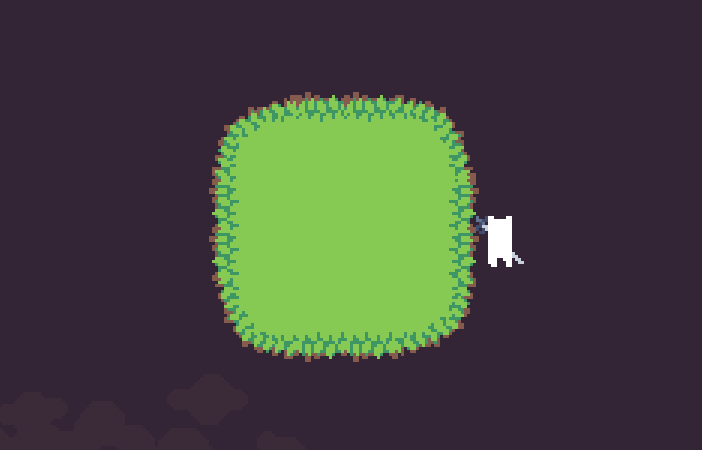
If you don't see the testing tiles in-game now, maybe the object isn't in the room? Maybe it's behind a layer? Maybe you're looking in the wrong place? Maybe the something's wrong with the sprite?
Assuming it now works, let's proceed with the actual autotiling. Firstly, let's write a script for autotiling a single grid cell based on surrounding cells. The script is explained in great detail below.
/// @func grid_tile_cell(grid, x, y)
/// @desc Tiles a cell based on surrounding cells
/// @arg grid
/// @arg x
/// @arg y
/// @returns bitflag or undefined if not solid

var _grid = argument0;
var _x    = argument1;
var _y    = argument2;

// Return early if cell is not solid
if (_grid[# _x, _y] == undefined) return undefined;

var _mx = ds_grid_width( _grid) - 1; // Max grid x value
var _my = ds_grid_height(_grid) - 1; // Max grid y value

var _bitflag = 0;

if (_x < _mx) _bitflag |= (_grid[# _x + 1, _y] == undefined) * 1;
if (_y < _my) _bitflag |= (_grid[# _x, _y + 1] == undefined) * 2;
if (_x >   0) _bitflag |= (_grid[# _x - 1, _y] == undefined) * 4;
if (_y >   0) _bitflag |= (_grid[# _x, _y - 1] == undefined) * 8;

_grid[# _x, _y] = _bitflag;

return _bitflag;
This script first checks if the cell at the given _x, _y coordinate is solid (any positive value), and exits early if it isn't. Then it gets the max value for x and y on the grid. This is important so that it doesn't check cells OOB (Out Of Bounds). When reading OOB of a ds_grid in GML, you'll get undefined, and a warning message in the output panel. Sometimes this could be nice, however when you build an executable from the project, ds_grid OOB reading will cause the game to crash. Therefore, it's important to make sure you don't read OOB. So, below, when we check the surrounding tiles, we start with an if check that makes sure the adjacent coordinate to check is within bounds. We assume that _x, _y is within bounds. When we wish to check for a tile to the right, _x + 1, _y, we simply need to make sure _x < _mx. If x is _mx, then x + 1 will be out of bounds. If x is 0, then x - 1 will be out of bounds.
After making sure grid checks will be within bounds, we want to check the cells, and add values onto _bitflag. Here it's perfectly possible to simply add (+) values as long as none of the values are the same and the values only have one on bit. However, since this is a bit misleading, it's better to use bitwise OR. x |= y will set x = x | y. This also makes it so that if you were to OR the same value into a variable again, it won't break the bitflag (x |= 4; x |= 4 is not the same as x += 4; x += 4). The values we want to OR are 0b0001, 0b0010, 0b0100 and 0b1000, which in base-10 is: 1, 2, 4 and 8. Because we wish to either OR a value or not OR a value for each surrounding cell, we can simply multiply the value by a boolean (true/falase, 1/0), and OR it to _bitflag. _bitflag |= true * 4 will OR 4 to _bitflag, but _bitflag |= false * 4 will OR 0 to _bitflag, leaving it unchanged. If you're uncomfortable using weak typing for this, you could instead use a ternary (_bitflag |= boolean ? 4 : 0), or even add the check to the if statement before it.
The boolean we multiply with will be the result of a relational expression, often just called a condition. This can for example be x > y, x == y, x <= y, where the operator between x and y is called a relational operator. Normally you see these in conditional statements like if (x == y), but they can be used anywhere in code, just like x * 8 or z - y. Relational expressions evaluate to booleans, so v = x == y will set v to either true or false, depending on whether or not x is equal to y or not. Since we want to add bits to the bitflag if an adjacent tile is not solid, and because cells with a value of 0 or above are considered solid, we can simply check if the cell value is less than 0.
Finally, the accumulated bitflag value replaces the cell value, and is returned from the script. Of course, this only tiles a single cell, so a bit more work needs to be done. When, in the game, you place a new tile (or remove a tile), the surrounding tiles need to be updated too. You could just loop through the entire grid and tile every single cell, but that's pretty slow. There are times when this is a valid option (when loading a grid, for example), but it can be avoided when placing/removing tiles, since only a few tiles need to be updated. Let's write some code in a step event for placing, removing and tiling cells:
// Placing/removing tiles at mouse coordinate
if (mouse_check_button(mb_left) || mouse_check_button(mb_right)) {

    var _grid_mouse_x = mouse_x div cell_size;
    var _grid_mouse_y = mouse_y div cell_size;

    if ( // Check if coordinate in grid bounds
        _grid_mouse_x >= 0 &&
        _grid_mouse_y >= 0 &&
        _grid_mouse_x < grid_width &&
        _grid_mouse_y < grid_height
    ) {
        if (mouse_check_button(mb_left )) grid[# _grid_mouse_x, _grid_mouse_y] = 0;
        if (mouse_check_button(mb_right)) grid[# _grid_mouse_x, _grid_mouse_y] = undefined;

        grid_tile_cell(grid, _grid_mouse_x,     _grid_mouse_y    ); // x At mouse
        grid_tile_cell(grid, _grid_mouse_x + 1, _grid_mouse_y    ); // → Right
        grid_tile_cell(grid, _grid_mouse_x,     _grid_mouse_y + 1); // ↓ Down
        grid_tile_cell(grid, _grid_mouse_x - 1, _grid_mouse_y    ); // ← Left
        grid_tile_cell(grid, _grid_mouse_x,     _grid_mouse_y - 1); // ↑ Up
    }
}
This simply gets the mouse coordinate relative to the grid, checks if it's within grid bounds, then sets the cell to either 0 (solid) or undefined (void). The Cell is tiled afterwards, but it has to be set before surrounding cells are tiled. This can be optimized a bit more by also checking if the cell already is solid/removed before tiling.
// Placing/removing tiles at mouse coordinate
/*add*/var _mb = mouse_check_button(mb_left) | mouse_check_button(mb_right) * 2;
/*add*/if (_mb > 0) {

    var _grid_mouse_x = mouse_x div cell_size;
    var _grid_mouse_y = mouse_y div cell_size;

    if ( // Check if coordinate in grid bounds
        _grid_mouse_x >= 0 &&
        _grid_mouse_y >= 0 &&
        _grid_mouse_x < grid_width &&
/*add*/     _grid_mouse_y < grid_height && (
/*add*/            _mb == 1 && grid[# _grid_mouse_x, _grid_mouse_y] == undefined ||
/*add*/            _mb == 2 && grid[# _grid_mouse_x, _grid_mouse_y] != undefined
/*add*/        )
    ) {
/*add*/        grid[# _grid_mouse_x, _grid_mouse_y] = _mb == 1 ? 0 : undefined;

        grid_tile_cell(grid, _grid_mouse_x,     _grid_mouse_y    ); // x At mouse
        grid_tile_cell(grid, _grid_mouse_x + 1, _grid_mouse_y    ); // → Right
        grid_tile_cell(grid, _grid_mouse_x,     _grid_mouse_y + 1); // ↓ Down
        grid_tile_cell(grid, _grid_mouse_x - 1, _grid_mouse_y    ); // ← Left
        grid_tile_cell(grid, _grid_mouse_x,     _grid_mouse_y - 1); // ↑ Up
    }
}
Changed duplicate mouse checks to using bitflag
_mb(_mouse_button) and check if cell needs to be changed
Everything should now be in order for 16-tile autotiling!
# 47-tile autotiling
So lets look at a more advanced solution. You've seen that the 16-tile solution has a bunch of odd corners with the tileset used in this article. To solve this, you'd want to also check diagonal cells. If we use the same math as before for counting how many different tile sprites we'll need, it's 1 + 2 + 4 + 8 + 16 + 32 + 64 + 128 = 255! That's a lot of sprites to draw for single tileset. Luckily, this can be shortened, but it's not very beautiful. Look at the middle tile in each of the patterns below:
Notice how this tile stays the same for all three versions. Adding a tile to the top left, bottom left or bottom right, doesn't warrant a different tile in this case. If we find all the cases in which we want to use a tile sprite that already exists, we get a really big, ugly map...
{
    171: 11, 187: 11, 427: 11, 443: 11, 43: 11, 139: 11, 395: 11, 411: 11, 283: 11, 315: 11, 299: 11, 27: 11, 267: 11, 155: 11, 59: 11,
    413: 13, 445: 13, 189: 13, 157: 13, 45: 13, 61: 13, 285: 13, 397: 13, 141: 13, 429: 13, 317: 13, 301: 13, 269: 13, 29: 13, 173: 13,
    398: 14, 158: 14, 62: 14, 302: 14, 446: 14, 318: 14, 286: 14, 142: 14, 174: 14, 430: 14, 190: 14, 414: 14, 30: 14, 270: 14, 46: 14,
    295: 7, 423: 7, 311: 7, 439: 7, 407: 7, 391: 7, 263: 7, 39: 7, 167: 7, 183: 7, 23: 7, 135: 7, 55: 7, 279: 7, 151: 7,
    438: 33,
    432: 30,
    434: 40, 178: 40, 146: 40, 402: 40,
    442: 10, 314: 10, 426: 10, 410: 10, 186: 10, 282: 10, 170: 10, 394: 10, 138: 10, 42: 10, 154: 10, 298: 10, 58: 10, 26: 10, 266: 10,
    21: 5, 261: 5, 165: 5, 181: 5, 421: 5, 437: 5, 149: 5, 405: 5, 309: 5, 293: 5, 389: 5, 277: 5, 53: 5, 37: 5, 133: 5,
    440: 46, 312: 46, 424: 46, 296: 46,
    436: 43, 180: 43, 164: 43, 420: 43,
    433: 37, 401: 37, 273: 37, 305: 37,
    182: 33, 166: 33, 134: 33, 390: 33, 406: 33, 150: 33, 422: 33,
    435: 34, 403: 34, 179: 34, 147: 34, 307: 34, 275: 34, 51: 34, 19: 34,
    444: 32, 188: 32, 428: 32, 172: 32, 316: 32, 60: 32, 44: 32, 300: 32,
    441: 31, 425: 31, 313: 31, 297: 31, 409: 31, 393: 31, 281: 31, 265: 31,
    287: 15, 447: 15, 431: 15, 319: 15, 303: 15, 175: 15, 63: 15, 47: 15, 415: 15, 399: 15, 191: 15, 271: 15, 159: 15, 143: 15, 31: 15,
    412: 12, 156: 12, 396: 12, 140: 12, 284: 12, 28: 12, 268: 12,
    185: 9, 169: 9, 57: 9, 41: 9, 153: 9, 137: 9, 25: 9,
    419: 3, 291: 3, 387: 3, 259: 3, 163: 3, 35: 3, 131: 3,
    294: 6, 310: 6, 54: 6, 38: 6, 278: 6, 262: 6, 22: 6,
    161: 1, 33: 1, 129: 1,
    290: 2, 34: 2, 258: 2,
    276: 4, 20: 4, 260: 4,
    152: 8, 136: 8, 24: 8,
    32: 17,
    256: 23,
    128: 19,
    384: 27,
    48: 18,
    404: 42, 148: 42, 132: 42, 388: 42,
    144: 20, 160: 21, 288: 25, 272: 24,
    177: 35, 49: 35, 145: 35, 17: 35,
    417: 36, 289: 36, 385: 36, 257: 36,
    308: 41, 292: 41, 52: 41, 36: 41,
    184: 45, 168: 45, 56: 45, 40: 45,
    408: 44, 392: 44, 280: 44, 264: 44,
    306: 39, 50: 39, 274: 39, 18: 39,
    418: 38, 162: 38, 386: 38, 130: 38,
    416: 29, 304: 26, 400: 28, 176: 22,
}
While you can go looking for patterns in which tiles need to be remapped to which tiles, the end result would only be an even more confusing mess of if statements. The best solution is to simply use a map that someone has already compiled before, like the one above. With the power of scripts, we can tuck this map away and never look at it again!